Back to Asset Essentials Main Menu
Brightly Maintenance Copilot is an intelligent assistant in AE that enhances maintenance efficiency by providing in-context support within work orders. It uses two key data sources:
-
Asset manuals (PDFs): Linked directly to the asset for quick reference
-
Maintenance records: Include past maintenance dates and actions performed
Based on this information, Copilot provides step-by-step instructions, diagnostic guidance, and fix recommendations, enabling technicians to complete work orders faster and more effectively.
The effectiveness of Brightly Maintenance Copilot depends on data quality. Missing manuals or incomplete, inaccurate maintenance history can reduce the relevance and usefulness of its outputs. To maximize its value, ensure your data is complete, accurate, and up to date.
NOTE This feature is only available to clients who have purchased Asset Essentials Enterprise. Please contact your Sales Representative or Client Services if you are interested in purchasing Asset Essentials Enterprise.
NOTE This feature is available on both the Web and Mobile versions of Asset Essentials (AE). If Brightly Copilot button is not visible in your AEE environment , please contact your system administrator for assistance.
Prerequisites and Availability
Brightly Maintenance Copilot's availability depends on specific configurations and conditions:
-
Subscription: Requires an Asset Essentials Enterprise subscription.
-
Platform: Available on both the AE website and mobile platforms.
-
Mobile: Supported only in the Asset Essentials Mobile Application's online mode (offline mode is not supported).
-
-
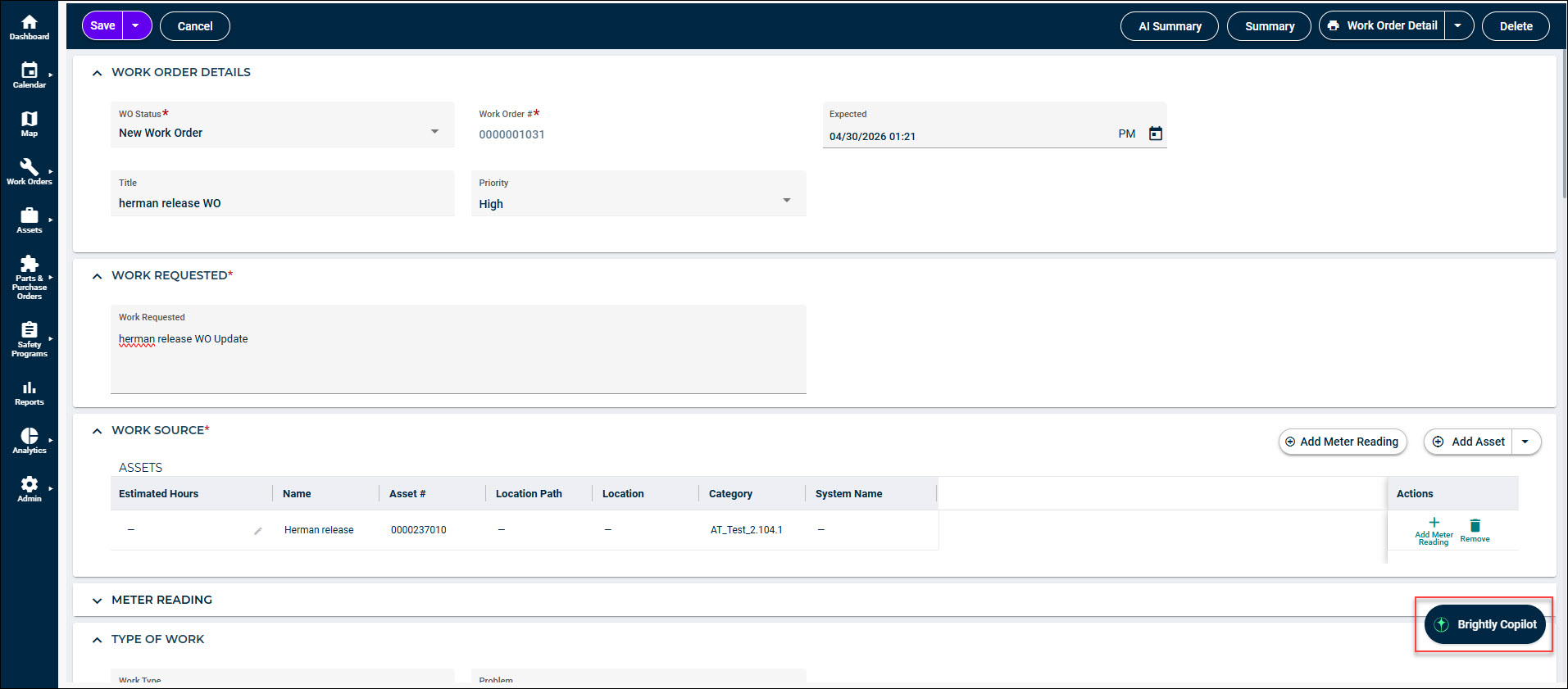
Location: Accessible from the Work Order Details page, where it appears as a floating action button (FAB) labeled "Brightly Copilot." It functions for both modifiable and non-modifiable work orders.
-
Work Source: Brightly Copilot is available only when the Work Order's Work Source is "Assets."
NOTE If Brightly Copilot button is not visible in your AE environment, please contact your system administrator for assistance.
Access Brightly Maintenance Copilot
-
Login to Asset Essentials.
-
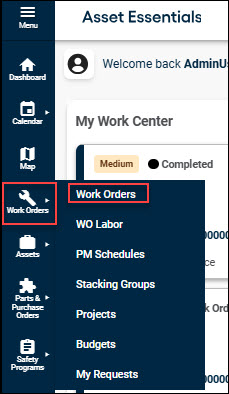
Navigate to Work Orders → Work Orders.
-
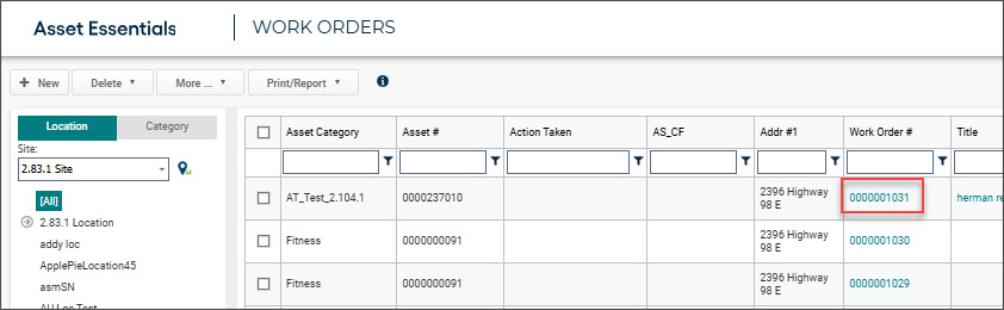
Select the work order you want to summarize.
-
Within the work order, locate and select Brightly Copilot a floating action button (FAB).
How Brightly Maintenance Copilot Responds
Brightly Maintenance Copilot uses two primary information sources to generate its responses:
Linked Asset Documents
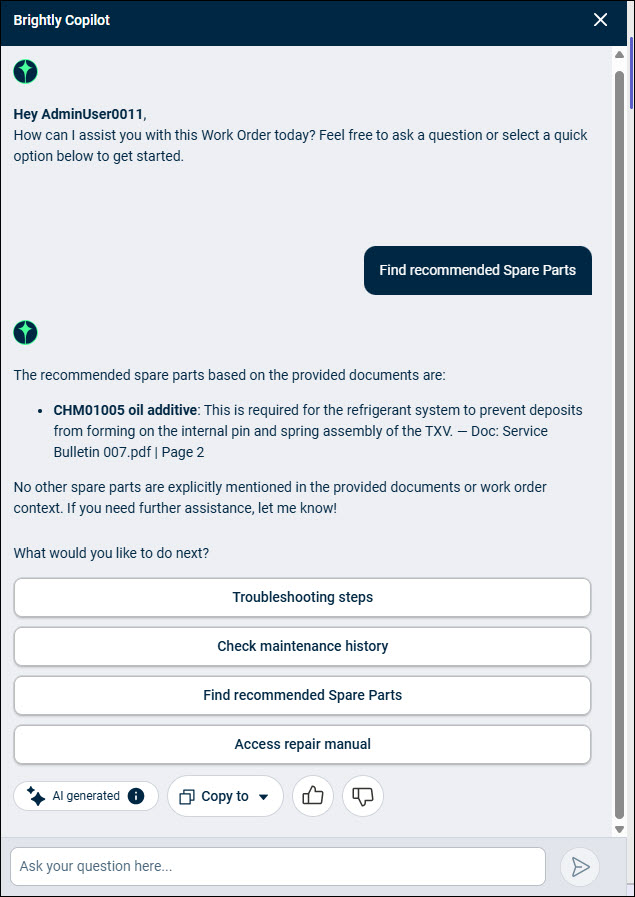
Brightly Maintenance Copilot reads attached asset manuals (PDFs) if any and extracts relevant information.
Example: If you ask, "Find recommended spare parts," Brightly Maintenance Copilot searches the manual and returns the results in simple, readable text.
Maintenance Records
Brightly Maintenance Copilot also uses maintenance records for that asset.
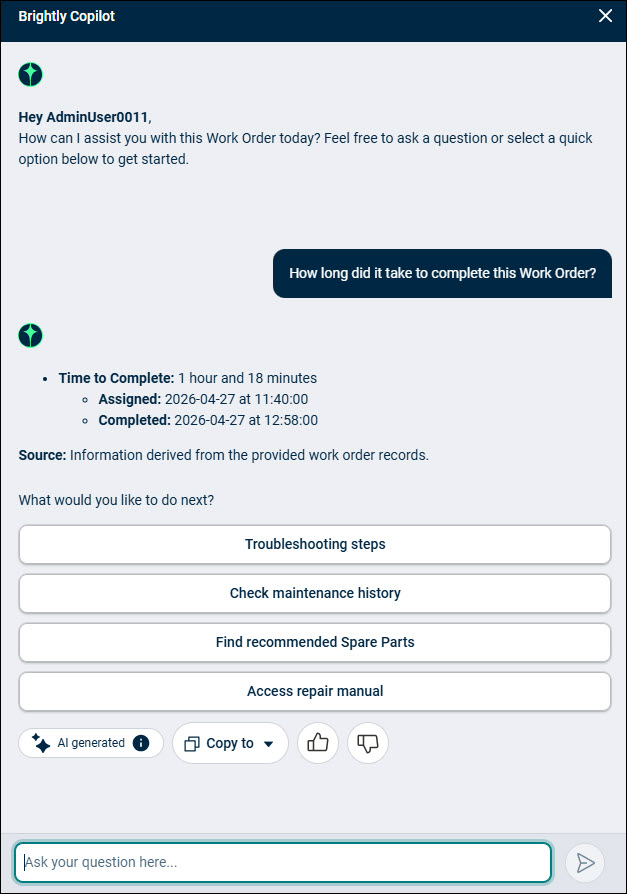
Example: If you ask, "How long did it take to complete this Work Order?" Brightly Maintenance Copilot calculates the duration using the start and end dates. The system uses information for up to 20 recorded maintenance activities.
Brightly Maintenance Copilot Features
Brightly Maintenance Copilot offers four primary functionalities to assist technicians.
Troubleshooting Steps
This feature provides diagnostic recommendations and potential solutions for issues described in your work order.
-
How it Works: Brightly Maintenance Copilot analyses the asset linked to the work order and the reported problem (e.g., "heating not working properly"). It then searches relevant information within manuals attached to that specific asset.
-
Information Provided:
-
Probable Fault Root Causes
-
Diagnostic Recommendations
-
Step-by-Step Repair Instructions
-
-
Source Citation: Each piece of information includes a reference to its source, such as the manual name and page number (e.g., "Source: User Manual, Page 28").
Check Maintenance History
This feature offers insights into past maintenance activities performed on the assets associated with the current work order.
-
Last Maintenance: Displays details of the most recently completed work order for the assets.
-
Historical Insights: A summary of the top two to three recurring issues based on up to 20 relevant work orders, along with the actions taken to resolve them.
-
Data Dependency: The information presented is directly dependent on available records in the system. If no historical data exists for the asset, Brightly Copilot will indicate that no data is available.
Find Recommended Spare Parts
This feature assists in identifying necessary spare parts for repair.
-
How it Works:
-
Historical Insights: Brightly Maintenance Copilot reviews up to 20 relevant work orders for the same asset. It identifies work orders with similar issues to the current one and checks which parts were previously used for resolution.
-
Manual Reference: It also consults manuals attached to the asset for any recommended parts relevant to the specific problem.
-
-
Context-Based Recommendations: All recommendations are tailored in the context of the issue described in the work order.
-
Data Dependency: If no relevant spare parts are identified through historical data or manuals, Brightly Maintenance Copilot will state that no spare parts are explicitly recommended.
Access Repair Manual
This feature is designed to help you quickly and efficiently find information within specific repair manuals and service bulletins.
How it Works:
-
Access Documents: The feature will present you with relevant repair manuals and service bulletins. You'll also get a brief overview of what each document covers.
-
Ask Your Question: Clearly type your question. The feature will search only within these attached manuals to provide precise answers. For example, you can ask about "safety hazards if this is not resolved," and it will refer to the documents to find information on electrical, mechanical, or refrigerant safety.
-
Review the Answer: The feature will provide answers directly sourced from the attached documents, helping you get the information you need quickly.
NOTE Currently, this feature's ability to answer questions is restricted to the content of the attached manuals only. It does not pull information from external sources.
Copying Brightly Maintenance Copilot Responses
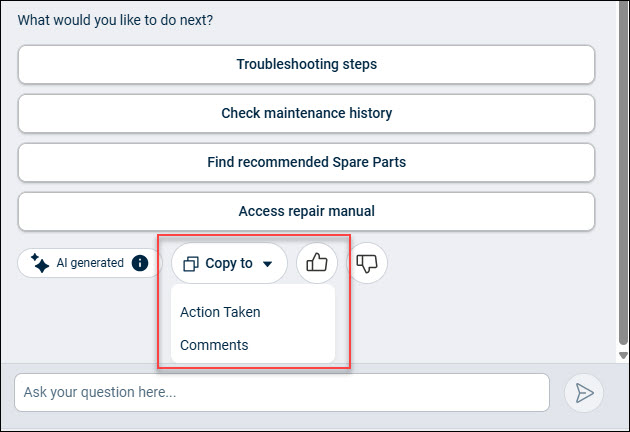
Brightly Maintenance Copilot provides a convenient "Copy to" function to transfer its responses directly into your work order notes or comments.
This functionality streamlines documentation, allowing you to quickly capture insights without manual re-entry.
-
Benefits:
-
Efficient Documentation: Save time by transferring generated information directly.
-
Audit Trail: Create a clear record of information considered or steps taken, valuable for future reference and audits.
-
Knowledge Sharing: Facilitate knowledge transfer to other technicians working on the same asset.
-
-
Editability: Once copied, the text can be edited or modified as needed to suit your specific documentation requirements.
-
Availability: The "Copy to" function is available across all Brightly Maintenance Copilot features.
Language Support
Brightly Maintenance Copilot supports all 17 languages available in Asset Essentials and responds in the language you use to ask questions.
NOTE The conversation will retain a single language throughout the session. Brightly Maintenance Copilot will respond in the same language in which the user enters data.
Important Considerations
Data Availability
Brightly Maintenance Copilot's effectiveness relies on the completeness of data within AE (e.g., historical work orders, attached manuals). If information is missing, Brightly Maintenance Copilot may indicate that data is unavailable or that no recommendations can be made.
Chat Session Expiry
-
The chat history is preserved as long as you remain on the Work Order Details page.
-
Leaving this page (e.g., going back to the Work Order List) ends the user session and clears the chat.
-
Clicking the Brightly Copilot button again starts a new session only when the user re-enters the work order details page from the listing page.
